Vivo U3 V1941A phone not connecting to PC only charging? Computer having trouble detecting the Vivo U3 V1941A Android phone? It may be caused by the missing Vivo U3 V1941A USB Driver or corrupted drivers. To fix Vivo U3 V1941A phone not showing up on PC, download Vivo U3 V1941A USB Drivers and install them on your computer.
Vivo USB Drivers are essential to seamlessly connect Vivo U3 V1941A to a Computer or Laptop over USB. Without the Vivo U3 V1941A drivers, the connection will not work, and your computer will have a hard time detecting your phone. On this page, you can download official Vivo U3 V1941A USB Drivers for Windows 11, Windows 10, Windows 7, Windows 8.1, and Windows 8, along with Vivo U3 V1941A ADB interface drivers and Fastboot drivers.
The Vivo U3 V1941A Android USB Drivers allows you to establish a secure and reliable connection between your phone and the computer over the USB connection. It will enable you to connect your phone as an MTP USB device (Media Transfer Protocol) and transfer files and data like images, videos, and documents between your phone and the computer.
The Vivo U3 V1941A ADB Driver and Fastboot Driver allows you to pass ADB commands and Fastboot commands right from your computer and perform certain operations on your phone.
Download Vivo U3 V1941A USB Driver
The Vivo Mobile Drivers provided here allow you to flash stock firmware, stock recovery, TWRP recovery, CWM recovery, Unlock Bootloader, etc. It also allows you to transfer media, documents, and other files to and from your phone to your computer.
Vivo U3 V1941A Driver for Flashing Firmware
How to install: Follow Tutorial
Vivo U3 V1941A USB Driver for normal connecting to PC
How to install: Follow Tutorial
The Vivo U3 V1941A Fastboot and ADB drivers can be downloaded below.
Vivo U3 V1941A ADB and Fastboot Drivers
How to install: Follow Tutorial
[!] Note: If you face Driver Signature Error while installing the USB Driver, then watch this video to fix the problem.
Also Download: Vivo U3 V1941T USB Drivers
How to Install Vivo U3 V1941A Qualcomm USB Drivers
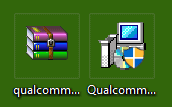
- First of all, download and extract Qualcomm USB Drivers package (qualcomm-driver.zip) to Desktop on your computer.
- Once extracted, you'll find Qualcomm Driver setup file (Qualcomm_USB_Driver_V1.0.exe).
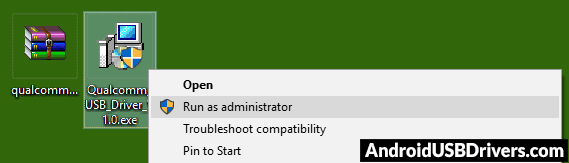
- Right-click on the Qualcomm USB Driver setup file and select Run as administrator.
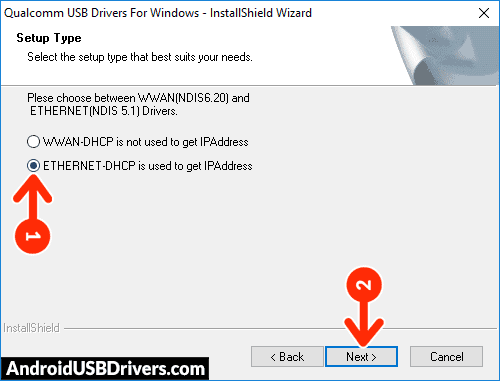
- Qualcomm USB Drivers for Windows installation wizard window should load. Select ETHERNET-DHCP is used to get the IPAddress option and click on Next.
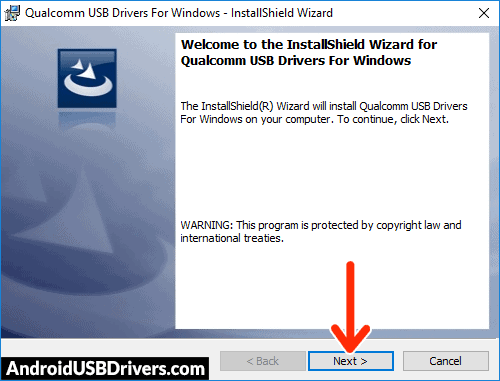
- Click on Next again to continue with the installation wizard.
- Now you'll be asked to accept terms, select I accept the terms in the license agreement and click on Next.
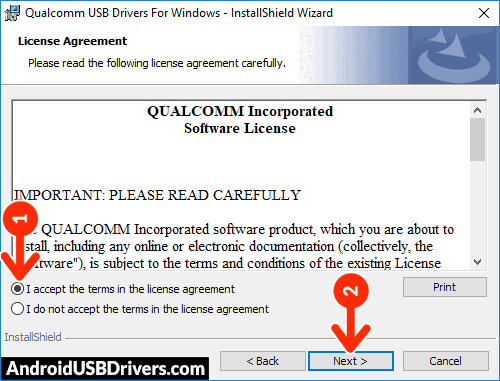
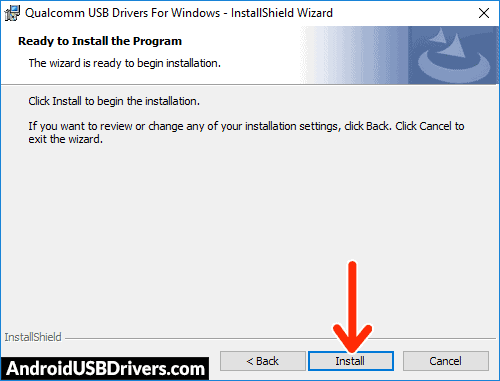
- Now, click on Install to begin the Qualcomm HS-USB Driver installation process.
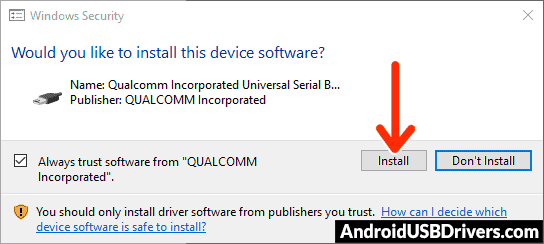
- If a Windows Security window pops-up asking "Would you like to install this device software?" Click on Install.
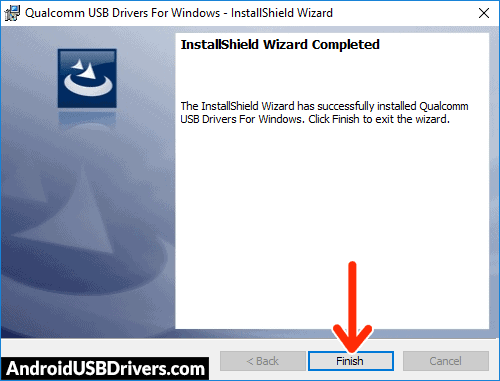
- When the Qualcomm Driver installation process is successful, click on Finish.
- Finally, reboot your computer.
How to Install Vivo U3 V1941A USB Drivers Manually
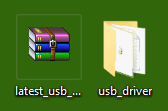
- Download and extract the latest Android USB Driver (latest_usb_driver_windows.zip) file to Desktop on your computer.
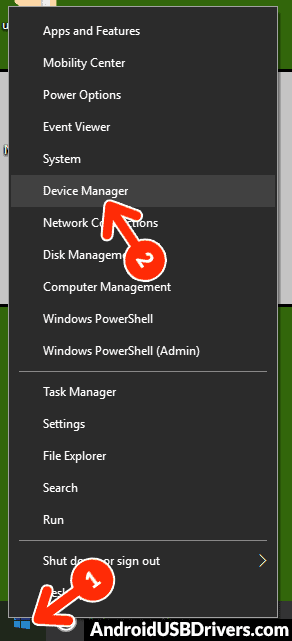
- Now open the Device Manager on your computer by right-clicking Windows Start Button and selecting Device Manager.
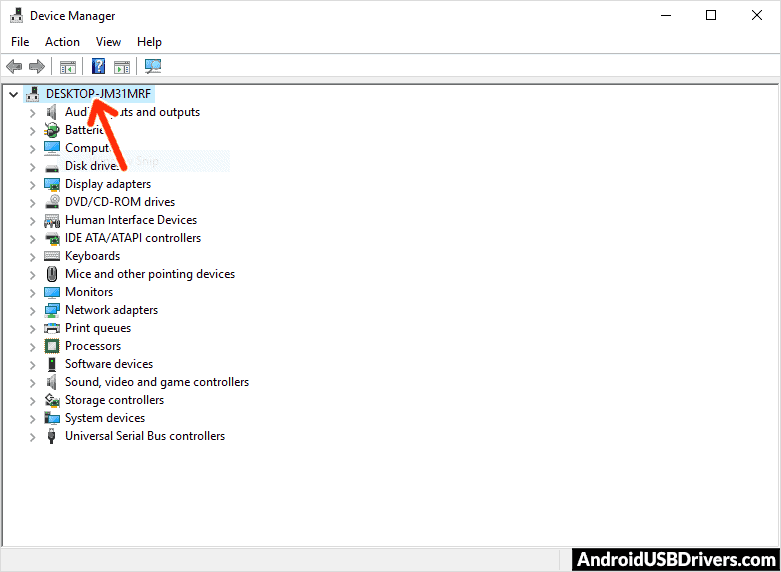
- Now click on your Computer name in the Device Manager window.
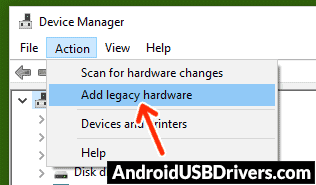
- Now click on Action and then click on Add legacy hardware.
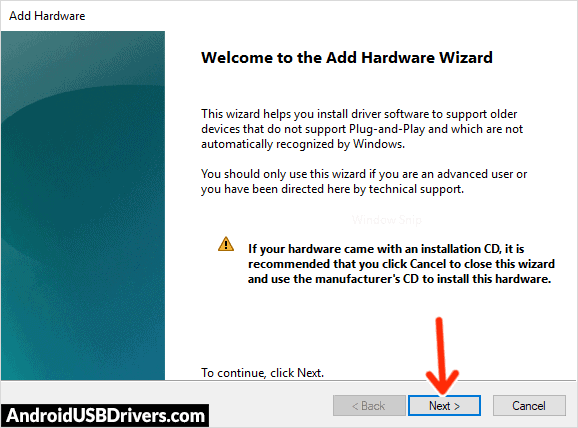
- Now Add Hardware Wizard window should open. Click on Next to continue.
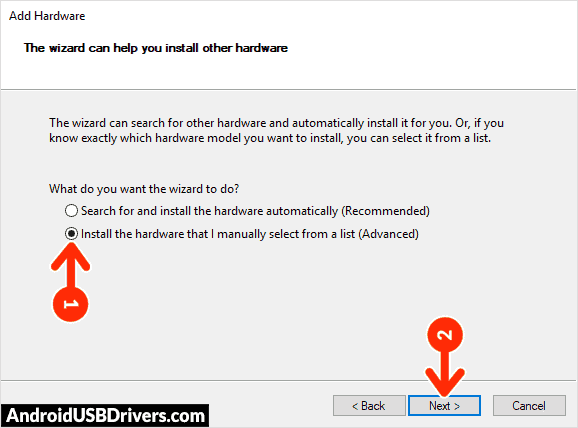
- Select Install the hardware that I manually select from a list (Advanced) option and click on Next.
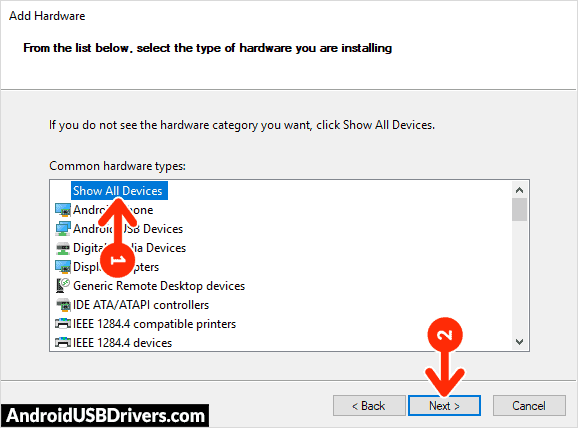
- Select Show All Devices from the list and click on Next.
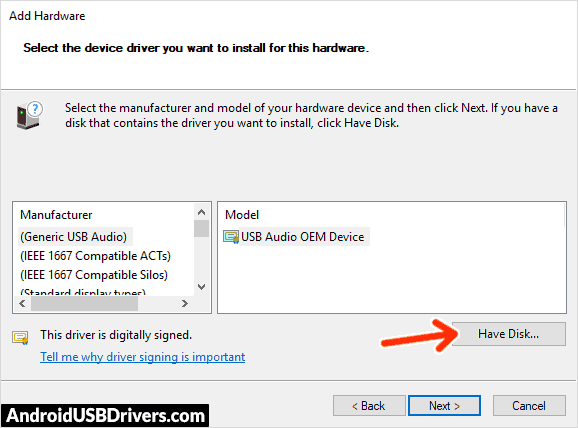
- In the next screen, click on Have Disk… to open the Install From Disk window.
- In the Install From Disk window, click on Browse… and navigate to the folder where you have extracted the drivers in Step #1.
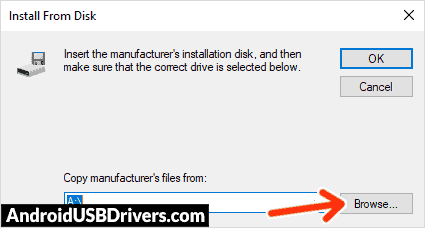
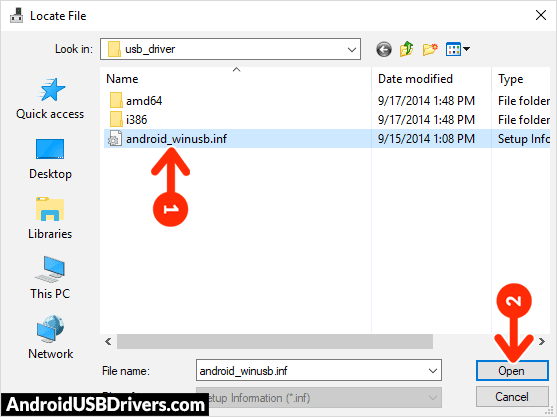
- Now select android_winusb.inf driver file and click on Open and then on OK.
- Now select the Android ADB Interface driver from the list and click on Next.
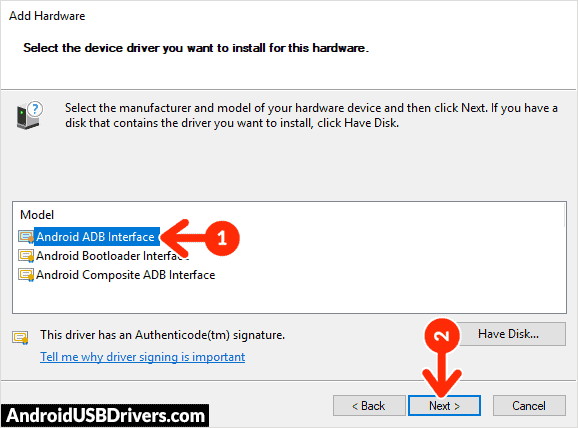
- Confirm the Hardware driver to install and click on Next to begin the installation process.

- Once installed, click on Finish.
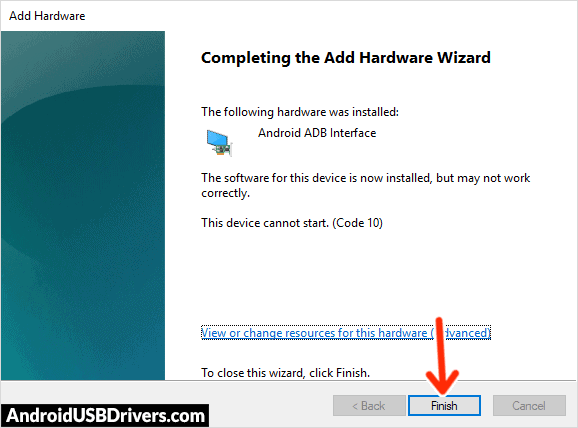
- Follow Steps #3 to #13 again and install the Android Bootloader Interface driver and Android Composite ADB Interface driver.
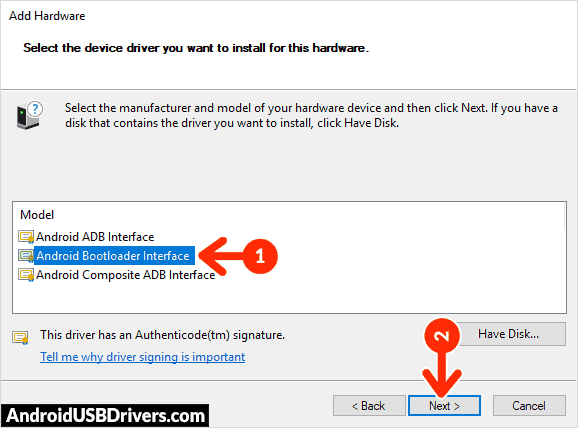
- Once all the listed drivers are installed, reboot your computer.
Video Tutorial: How to Install Vivo U3 V1941A Android USB Drivers
How to Install Vivo U3 V1941A ADB and Fastboot Drivers
- Download and extract the 15 Seconds ADB installer zip file on your computer. Once extracted, you'll find the ADB driver installer setup file.
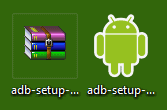
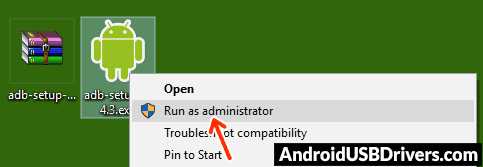
- Right-click on the ADB installer setup file and select Run as administrator.
- Now 15 seconds ADB driver installer command prompt window should open on your computer.
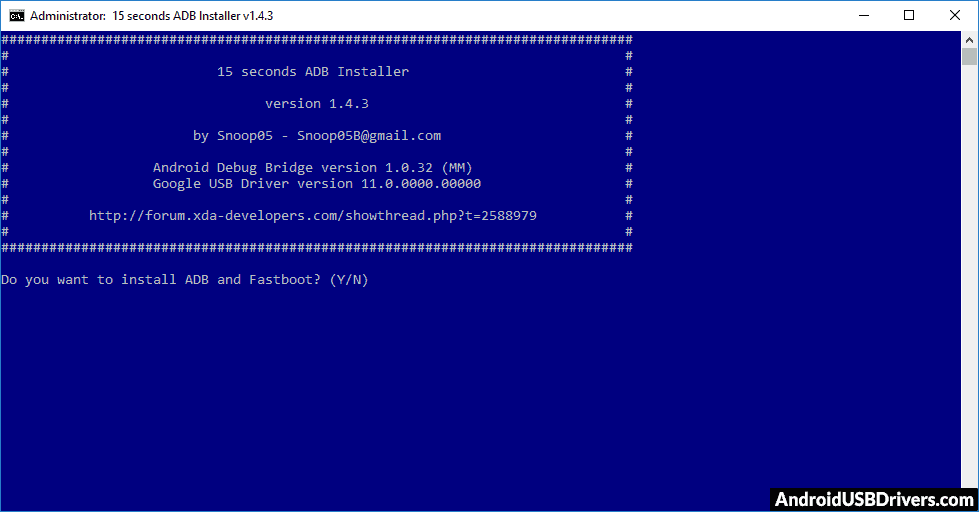
- It should ask whether you want to install the ADB driver and Fastboot driver. Press the Y key and then press Enter.
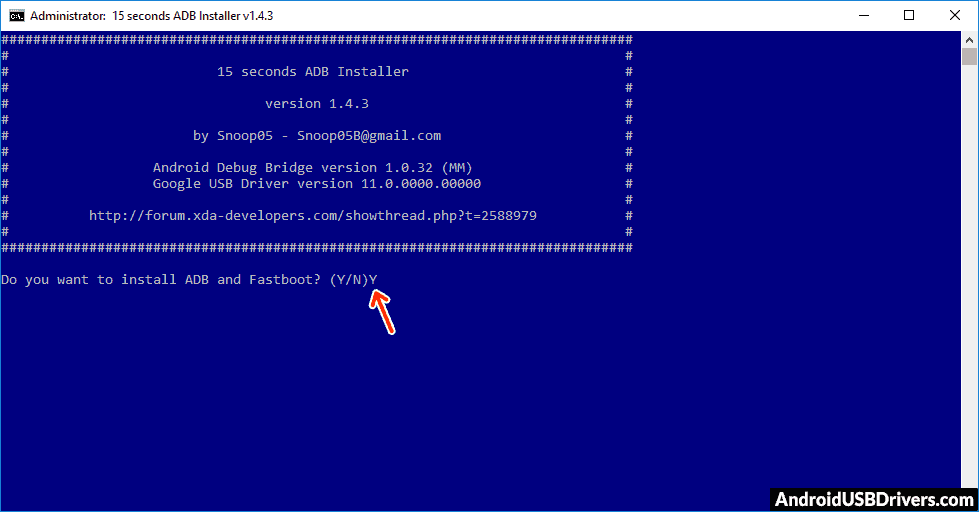
- Now, it should ask whether you want to install the ADB driver system-wide. Press the Y key again and hit Enter.
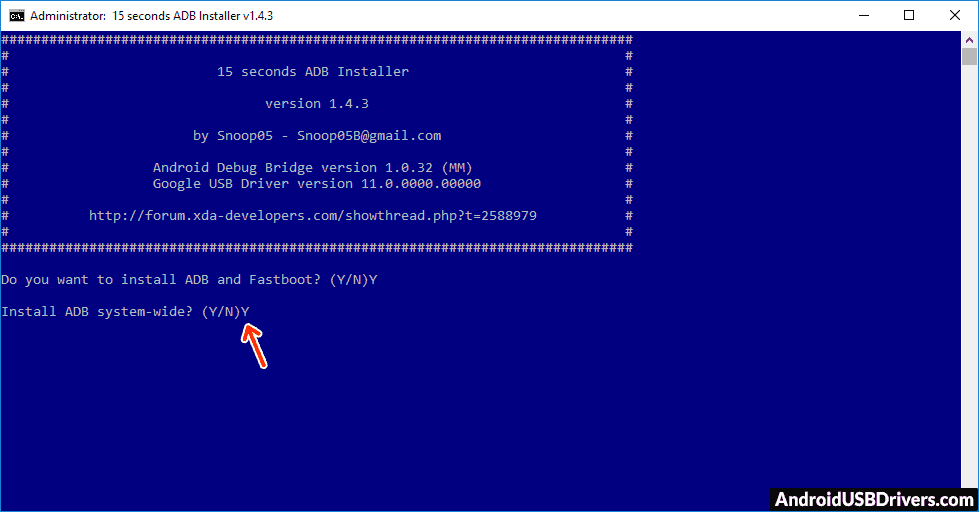
- Now, the ADB and Fastboot driver installation process should begin.
- When the ADB driver installation is finished, it will ask whether you want to install device drivers. Press the Y key and then press Enter.
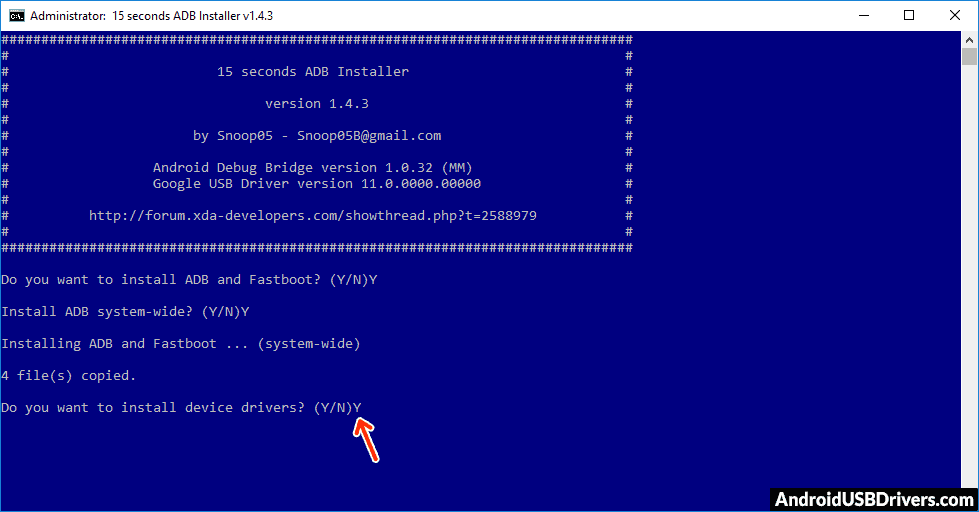
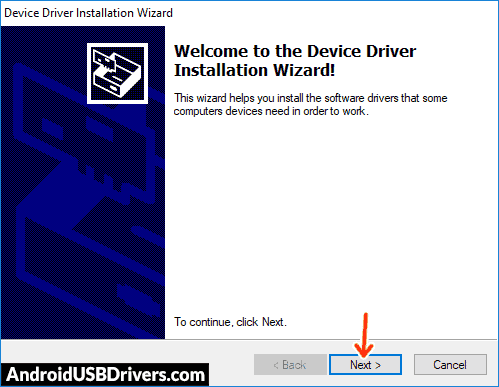
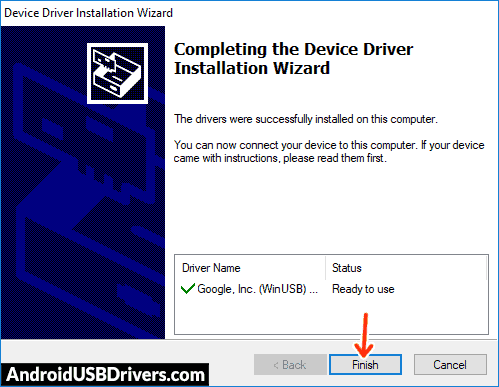
- Now the "Device Driver Installation Wizard" window should pop-up.
- Click on Next to begin installing Google USB Drivers (WinUSB).
- Once the installation process is completed, click on Finish and restart your computer.
Video Tutorial: How to Install Vivo U3 V1941A ADB and Fastboot Drivers
Important Notes:
[*] Driver Signature Error: If you got Driver Signature Error While installing the Driver then See this Video to fix this problem.
[*] Broken link: Report here.
[*] Have we missed any device model? Let us know by contacting us via Contact Us page.
LEAVE A REPLY